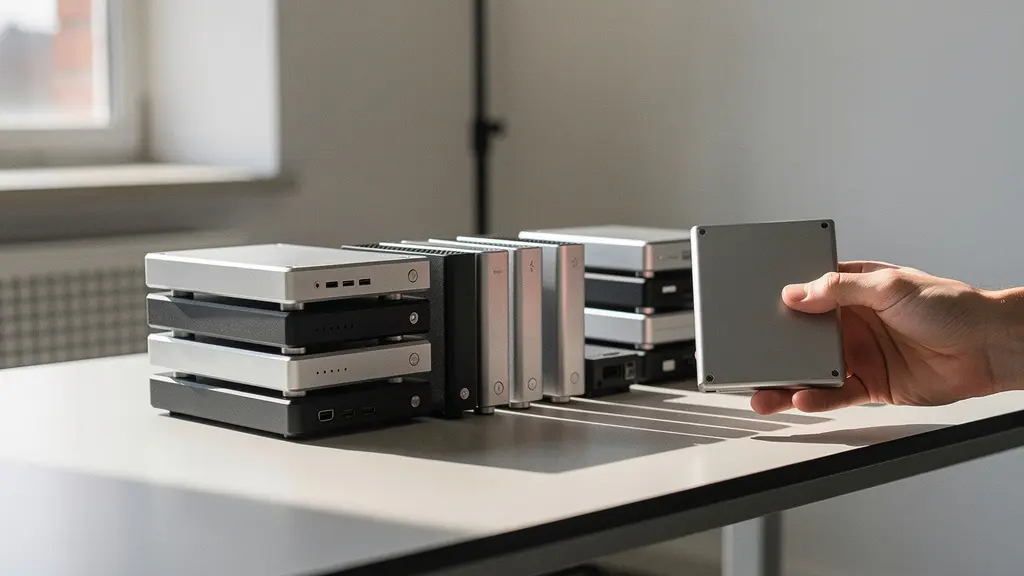
Archiving 50TB of photos is not a storage problem; it’s a data integrity and financial strategy challenge that requires a specialist’s approach.
- For unpowered “cold storage,” traditional HDDs offer significantly greater long-term data retention than consumer SSDs.
- A local Network Attached Storage (NAS) system becomes more cost-effective than commercial cloud storage within two years for large volumes.
- Active, automated measures against “bit rot” using modern filesystems are non-negotiable for preserving image integrity over decades.
Recommendation: Implement a hybrid 3-2-1 backup system centered around a checksum-enabled NAS for data integrity, supplemented by offline and off-site copies for disaster recovery.
For any professional photographer, the dread is familiar. The “Storage Almost Full” notification flashes across the screen, a constant reminder that your life’s work—terabytes of RAW files, client projects, and personal memories—is balanced precariously on a handful of external drives. The common advice is to “just buy more storage” or “move everything to the cloud,” but at the 50TB scale, these simple solutions become financially unsustainable and dangerously incomplete. A growing collection of drives doesn’t protect you from a single point of failure, and cloud subscription fees for massive volumes can quickly spiral into thousands of dollars per year.
The standard 3-2-1 backup rule (three copies, on two different media, with one off-site) is a solid foundation, but it’s only the beginning. True, long-term archival is a battle against silent enemies that most photographers overlook: gradual magnetic degradation, imperceptible “bit rot” that silently corrupts files over years, and the risk of being locked out of your own work by proprietary software. The solution isn’t just to add more layers of storage; it’s to build a resilient, intelligent, and financially sound *system* designed for longevity.
This guide moves beyond the basics to provide a specialist’s framework for managing a massive photo archive. We will dissect the technical choices that truly matter, from the physical media you choose for cold storage to the filesystem that actively protects your data. We’ll outline practical, budget-conscious strategies for implementing a robust backup workflow and explore how to organize your files to be independent of any single piece of software. It’s time to move from simply storing photos to truly archiving them.
For those who need to manage file transfers as a core part of their workflow, the following video offers a practical demonstration of moving files efficiently, a foundational skill for any robust data management plan.
This article provides a comprehensive roadmap for building a secure and cost-effective archival system. The following sections will guide you through each critical decision, from choosing the right hardware to implementing future-proof software strategies.
Table of Contents: How to Build a Resilient 50TB Photo Archive
- SSD vs. HDD for cold storage: Which drive type actually lasts longer on the shelf?
- How to implement the 3-2-1 backup rule on a freelancer’s budget?
- The “bit rot” phenomenon that silently corrupts your JPEGs after 5 years
- How to rename 10,000 photos in 5 minutes using batch metadata tools?
- Why paying for 2TB of cloud storage costs more than a NAS system in the long run?
- The storage mistake that deletes years of family interviews in an instant
- Why a subscription model costs you $3,000 more over 5 years than perpetual licenses?
- How to Display High-Resolution Images on Websites Without Killing Load Speed?
SSD vs. HDD for cold storage: Which drive type actually lasts longer on the shelf?
The conventional wisdom is that Solid-State Drives (SSDs) are superior due to their speed and lack of moving parts. While this is true for an active work drive, the equation flips for “cold storage”—drives that are powered off and stored on a shelf for long-term archiving. SSDs store data as electrical charges in floating-gate transistors, which slowly leak over time when unpowered. This phenomenon, known as charge decay, is accelerated by higher storage temperatures. In contrast, Hard Disk Drives (HDDs) store data on magnetic platters, which are far more stable over long, unpowered periods.
The difference in longevity is significant. While a modern consumer SSD might only be rated to hold data for a few years when unpowered in a warm environment, an HDD can remain stable for a decade or more under similar conditions. For a professional building an archive intended to last, this makes enterprise-grade HDDs the clear choice for offline, cold storage copies. According to recent research on cold storage data retention, consumer SSDs can retain data for just 3-5 years when powered off at 30°C, whereas HDDs reliably maintain data for over 10 years. This is corroborated by real-world tests from data archiving communities, where HDDs shelved for 7-10 years have been successfully read with minimal issues.
The following table breaks down the key differences for long-term, unpowered data retention, highlighting why the physical nature of the storage medium is critical for archival purposes.
| Storage Type | Data Retention (Unpowered) | Temperature Sensitivity | Failure Mode |
|---|---|---|---|
| Consumer SSD | 1-5 years at 30°C | High – halves every 5°C increase | Sudden electronic failure |
| Enterprise HDD | 10+ years optimal conditions | Low – magnetic storage stable | Gradual mechanical degradation |
| LTO Tape | 30+ years | Moderate | Physical degradation |
The key takeaway is to match the drive technology to its specific role. Use fast SSDs for your active projects and operating system, but rely on high-capacity, enterprise-grade HDDs for your primary archive and offline backups. For the ultimate archival medium, LTO tapes offer 30+ years of stability, though the initial hardware investment is higher.
How to implement the 3-2-1 backup rule on a freelancer’s budget?
The 3-2-1 backup rule is the industry standard for data protection: maintain three copies of your data, on two different types of media, with one copy stored off-site. For a freelancer managing 50TB, this can seem prohibitively expensive, but a strategic, hybrid approach makes it achievable without breaking the bank. The goal is to combine the speed and convenience of local storage with the security of an off-site component.
A cost-effective system starts with a primary local archive, typically a Network Attached Storage (NAS) device. This serves as your central repository (Copy 1). The second local copy (Copy 2) can be a set of large external HDDs, onto which you periodically back up the NAS. This provides a crucial layer of redundancy against the failure of the primary NAS. The third, off-site copy (Copy 3) is where many get stuck. Instead of mirroring the entire 50TB to an expensive enterprise cloud service, a more affordable strategy is to use a consumer-focused cloud backup service like Backblaze, which offers unlimited backup for a low monthly fee, or to physically store a set of encrypted hard drives at a trusted second location, like a family member’s home or a bank safe deposit box.
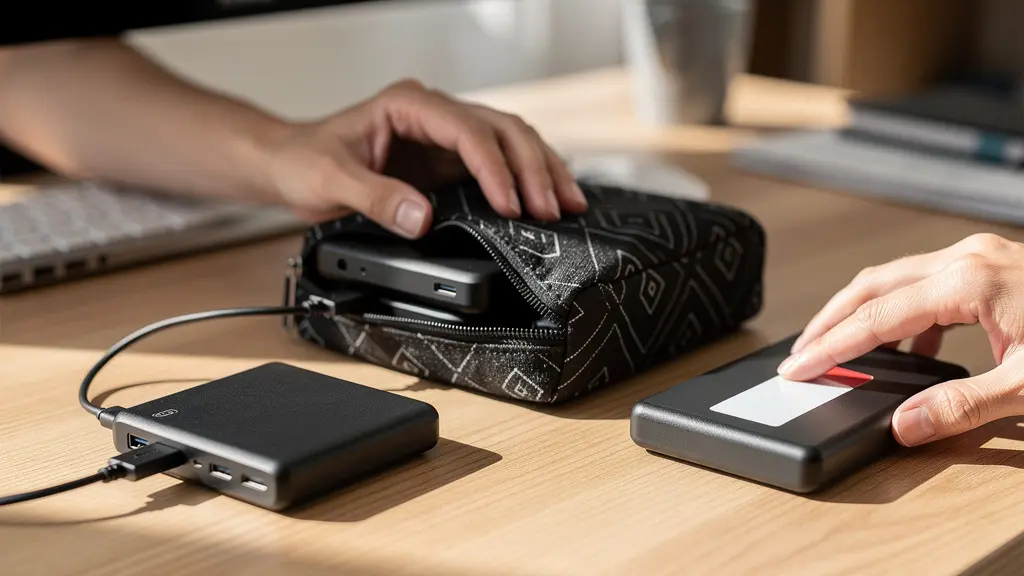
This tiered approach balances cost, speed, and security. Active projects get frequent, automated backups, while the deep archive is secured on a less frequent but regular schedule. Here is a practical, step-by-step model for a budget-friendly 3-2-1 implementation:
- Copy 1 (Primary): A multi-bay NAS (e.g., Synology DS418) configured with redundant drives (RAID) serves as the central, networked archive.
- Copy 2 (Local Backup): Use two large-capacity external HDDs (e.g., WD Elements 5TB). One is used to create a weekly or monthly backup of the NAS and is kept on-site.
- Copy 3 (Off-site Backup): The second external HDD is an “air-gapped” copy. After backing up the NAS, it is physically disconnected and stored in a separate, secure location. Alternatively, subscribe to an unlimited cloud backup service (e.g., Backblaze Personal) for automated off-site protection.
The “bit rot” phenomenon that silently corrupts your JPEGs after 5 years
One of the most insidious threats to a digital archive is not catastrophic drive failure, but “bit rot” or silent data corruption. This is the gradual, random degradation of data on a storage medium over time. A single bit flips from a 1 to a 0, and suddenly a perfectly preserved RAW file or JPEG develops a streak of magenta pixels, or becomes completely unreadable. This can happen without any warning, and if your backup software only copies the corrupted file, you are simply replicating the damage across your entire system.
This is why traditional RAID configurations, while useful, are not a complete solution. As noted photography expert Dan Muse explains, RAID is designed to protect against hardware failure, not data corruption.
RAID is not a backup. While RAID protects you from a single hard drive failing, it does absolutely nothing to protect against file deletion, ransomware, software bugs, or theft.
– Dan Muse, Professional Photo Backup Routine 2025
To combat bit rot, you need a system that actively monitors the integrity of your files. This is where modern filesystems like ZFS (Zettabyte File System) or Btrfs (B-tree File System) become essential. These advanced filesystems, available on many NAS devices (like those from Synology or TrueNAS), create a checksum (a unique digital signature) for every block of data when it’s written. When you access the file later, the system recalculates the checksum and compares it to the original. If they don’t match, it means corruption has occurred. If you have a redundant copy (in a RAID array), the system can automatically heal the file using the good data from another drive, stopping bit rot in its tracks.
Action Plan: Preventing Bit Rot in Your Archive
- Choose a NAS that supports a modern filesystem like ZFS or Btrfs, which include automatic checksumming to detect silent corruption.
- Schedule monthly “data scrubbing” on your NAS. This process proactively reads all data and verifies its integrity against checksums, repairing any errors found.
- Use ECC (Error-Correcting Code) RAM in your NAS to prevent memory-based corruption during file transfers, a common source of data errors.
- Periodically run file integrity checks using tools like HashCheck or MD5 verification on your offline archives to ensure they haven’t degraded.
- Maintain redundant copies across different media types (e.g., NAS and external HDD) to allow for cross-verification of data integrity.
How to rename 10,000 photos in 5 minutes using batch metadata tools?
A 50TB archive containing thousands of files named `IMG_4567.CR2` is functionally useless. The ability to find a specific image years from now depends entirely on the metadata embedded within it and a logical file naming convention. Relying solely on a Lightroom catalog is a trap; if the catalog becomes corrupt or you switch software, your organization is lost. The key to a future-proof archive is to make the files themselves self-describing.
This is achieved through a disciplined metadata workflow. Before you even begin renaming, you must embed key information directly into the files using IPTC/XMP standards. This includes copyright information, contact details, keywords, and location data. Tools like Adobe Lightroom, Photo Mechanic, or Capture One allow you to create metadata templates that can be applied to hundreds or thousands of photos upon import. This one-time setup ensures every file you shoot is permanently tagged with essential, searchable information.
Once metadata is embedded, batch renaming becomes a powerful final step. Using the embedded metadata (like capture date, location, or subject), you can use batch-processing tools to rename entire folders of images instantly into a consistent, human-readable format. This creates a logical, browseable folder structure that is independent of any single application.
Case Study: Kingston Technology’s Archive Naming System
Kingston Technology recommends a systematic file naming approach for photographers: include date, location, and subject in the filename (example: ‘Kingston_Technology_California_03-01-2023’). This method, combined with embedded IPTC metadata, ensures images remain searchable even after decades of storage, making 50TB archives manageable without relying on catalog software.
This process can be automated using powerful tools. For example, command-line utilities like ExifTool can read metadata from thousands of files and execute complex renaming schemes in seconds. While it has a steeper learning curve, it offers unparalleled power for managing massive archives. A professional workflow involves applying templates on import, then using a batch renamer to create a clean, logical archive structure.
Why paying for 2TB of cloud storage costs more than a NAS system in the long run?
At first glance, cloud storage seems like an easy solution. There’s no upfront hardware cost, and services like Dropbox or Google Drive are user-friendly. However, for the large volumes professional photographers deal with, the subscription model quickly becomes a significant financial drain. The cost is not a one-time purchase but a perpetual rental fee for your own data. For a 50TB archive, the costs would be astronomical, but even at smaller scales, the long-term expense is substantial.
A Network Attached Storage (NAS) system requires a higher initial investment in the enclosure and the hard drives. However, this is a one-time capital expenditure. After that, the only ongoing costs are minimal electricity usage and eventual drive replacement every 3-5 years. A recent cost analysis reveals that for 6TB of storage, a NAS system breaks even with cloud storage costs in just 1.5 years. Beyond that point, the NAS provides significant savings every single month. At the 50TB scale, the financial argument for a local NAS is overwhelming.
Let’s look at a 5-year Total Cost of Ownership (TCO) comparison for a 50TB system. This illustrates the dramatic difference between renting cloud space and owning your storage infrastructure.
| Storage Solution | Initial Cost | Monthly Cost | 5-Year TCO | Hidden Costs |
|---|---|---|---|---|
| Cloud (Dropbox Business) | $0 | $480 (20TB) | $28,800 | Download/egress fees |
| NAS (Synology + drives) | $6,000 | $20 (electricity) | $7,200 | Drive replacement at year 3-4 |
| Hybrid (NAS + Backblaze B2) | $6,000 | $250 | $21,000 | Initial upload time |
As the table shows, a fully-owned NAS system is approximately four times cheaper over five years than relying on a business-grade cloud service. The hybrid model, which combines a local NAS with a more affordable “B2” class of cloud storage for backup, offers a middle ground but is still significantly more expensive than a pure local-plus-offline-drive strategy. Owning your primary storage infrastructure not only saves a substantial amount of money but also gives you full control over your data, faster access speeds, and independence from third-party terms of service.
The storage mistake that deletes years of family interviews in an instant
One of the most common and devastating mistakes in data management is confusing synchronization with backup. Services like Dropbox, Google Drive, or iCloud Drive are primarily sync services. Their job is to ensure the files on all your devices are identical. This is convenient for daily work but catastrophic for archival security. If you accidentally delete a crucial folder, that deletion is faithfully and instantly synced to the cloud and all your other devices. If your computer is hit by ransomware that encrypts your files, the sync service will diligently upload those encrypted, useless files, overwriting your good copies in the cloud.
Renowned photographer and creative entrepreneur Chase Jarvis puts it succinctly:
Sync is not a Backup. If your files are encrypted by ransomware or accidentally deleted, the sync service will faithfully replicate that disaster across all your devices.
– Chase Jarvis, Complete Workflow, Storage & BackUp for Photography + Video
A true backup is a separate, isolated copy of your data that is not subject to immediate, automatic changes. It should have versioning, allowing you to go back in time to recover a file before it was deleted or corrupted. Relying on a single NAS without a proper, separate backup system is just as dangerous. It protects against a single drive failure within the NAS, but not against theft, fire, software bugs, or accidental mass deletion.
Case Study: A Professional’s $12,000 Lesson in Untested Backups
A professional photographer reported losing 45 days of irreplaceable photography work when relying solely on a single NAS without a proper backup. After the incident, they invested $12,000 in a dual-NAS setup to implement a proper 3-2-1 backup strategy. The most critical lesson they learned, however, was the importance of testing restores regularly. An untested backup is only a ‘theoretical’ backup that may fail when you actually need it, turning a recovery plan into a false sense of security.
The core principle is separation and isolation. Your backup copies must be insulated from the risks that affect your live data. This is why air-gapped (physically disconnected) hard drives or a true, versioned cloud backup service are essential components of the 3-2-1 rule, and why relying on a sync service as your only “backup” is a recipe for disaster.
Why a subscription model costs you $3,000 more over 5 years than perpetual licenses?
The shift to subscription-only software, led by giants like Adobe, presents a hidden long-term risk to your photo archive. While the monthly cost for a service like Creative Cloud seems manageable, it creates a state of permanent dependency. If you stop paying the subscription, you may lose the ability to access and edit your own RAW files, effectively holding your archive hostage. Over decades, these costs accumulate into a staggering sum.
For example, according to UK pricing analysis, the Adobe Creative Cloud photography plan can easily cost over £3,600 (roughly $4,500) over five years when factoring in the base plan and necessary cloud storage add-ons. In contrast, investing in software with a perpetual license (like Capture One, in some versions, or DxO PhotoLab) means you own that version of the software forever. While you may need to pay for major upgrades, you are never at risk of being locked out of your life’s work for non-payment.
This financial and accessibility risk is why a software-agnostic archiving strategy is crucial for true long-term preservation. The goal is to ensure your most important images are accessible 50 years from now, regardless of what company or software is still in business. This involves converting your proprietary RAW files into a more universal format and exporting finished work in a non-proprietary way.
Here are the key steps to creating an archive that is independent of any single software ecosystem:
- Convert to DNG: Convert your proprietary RAW files (like .CR3, .NEF, .ARW) to Adobe’s Digital Negative (DNG) format. DNG is an open, publicly documented archival format, making it far more likely to be readable by future software.
- Export Master Files as TIFF: For your absolute best, finished images, export them as 16-bit TIFF files. TIFF is a universal, uncompressed format that preserves maximum image quality and is readable by virtually any image software.
- Save XMP Sidecar Files: Ensure your editing software saves all your edits, keywords, and ratings to external .XMP “sidecar” files, rather than just inside its own catalog. This metadata can then be read by other applications.
- Create a “Digital Estate Plan”: Document all your passwords, software licenses, and access procedures in a secure, physical location. This ensures your family or colleagues could access your archive if needed.
Key Takeaways
- For long-term, unpowered “cold storage,” high-capacity HDDs are more reliable and cost-effective than SSDs.
- A local NAS using a modern filesystem (ZFS/Btrfs) is essential for actively fighting silent data corruption (“bit rot”) through checksums and data scrubbing.
- True archival longevity requires a software-agnostic approach, converting proprietary RAW files to DNG and exporting master images as 16-bit TIFFs.
How to Display High-Resolution Images on Websites Without Killing Load Speed?
After meticulously archiving and protecting your 50TB of images, the final step is to share your best work with the world. However, displaying high-resolution photos on a website presents a classic dilemma: you want to showcase stunning quality without forcing visitors to endure painfully slow load times. A website that takes too long to load will be abandoned, defeating the purpose of sharing your portfolio. The key is a modern image optimization workflow that delivers the right image size and format to the right user automatically.
Gone are the days of simply saving a JPEG at “72 DPI.” Modern web performance relies on a multi-faceted approach. This starts with using next-generation image formats like WebP and AVIF, which offer significantly better compression than JPEG at the same visual quality. Most modern browsers now support these formats, and you can provide a JPEG as a fallback for older browsers.
Furthermore, you should never serve a massive 4K image to a user on a small mobile screen. Using responsive images with the `srcset` attribute in your HTML allows the browser to automatically download the most appropriately sized version of an image based on the user’s device and screen resolution. This is often best handled by an Image CDN (Content Delivery Network) like Cloudinary or Imgix, which can automate format conversion, resizing, and compression on the fly.
Here is a checklist for a modern, high-performance web image workflow:
- Batch Convert to Modern Formats: Use a tool like Adobe Media Encoder or a command-line script to batch-convert your master TIFFs or JPEGs into WebP and AVIF formats for web use.
- Implement Responsive Images: Use the `srcset` and `sizes` attributes in your `<img>` tags to provide multiple image resolutions, letting the browser choose the most efficient one.
- Leverage an Image CDN: Services like Imgix, Cloudinary, or Cloudflare Images can automate optimization, format selection, and global delivery for the fastest possible load times.
- Enable Lazy Loading: Use the `loading=”lazy”` attribute for images that are “below the fold” (not immediately visible). This tells the browser to wait to load them until the user scrolls down, dramatically speeding up the initial page view.
- Set Smart Compression: Aim for a quality setting of around 80-85% for your JPEGs and WebP files. This provides the best balance between file size and visual quality, as the reduction in size is significant while the loss in quality is often imperceptible.
Your digital archive is the culmination of your creative career. By moving from simple storage to a resilient, intelligent, and financially sound archival system, you are not just protecting files—you are preserving your legacy. Take the first step today by auditing your current workflow against these principles.
Frequently Asked Questions on Archiving RAW Photos
Is RAID a backup?
No. RAID (Redundant Array of Independent Disks) protects you from the failure of a single hard drive within an array. It does nothing to protect against accidental file deletion, file corruption (bit rot), ransomware, software bugs, theft, or natural disasters. A true backup must be a separate, isolated copy of your data.
What’s a better long-term format: DNG or 16-bit TIFF?
Both serve different archival purposes. DNG (Digital Negative) is ideal for archiving your original RAW files in a universal format, preserving all the flexibility of the original capture. 16-bit TIFF is best for archiving your final, edited “master” images. It is an uncompressed, universally readable format that locks in your creative vision at the highest possible quality.
How often should I test my backups?
You should perform a test restore at least quarterly, and ideally after any major change to your system. An untested backup is only a theoretical backup. A test involves picking a random file or folder from your backup and attempting to restore it to ensure the data is readable and intact. This simple check can save you from discovering your backup is corrupted only when you desperately need it.