
For most freelancers, switching from Adobe to Affinity is a financially sound and operationally feasible move when planned as a strategic business project, not an impulsive software swap.
- The financial leverage is significant, with potential savings exceeding $3,000 over five years by eliminating subscription fees.
- Primary friction points, such as muscle memory for shortcuts and collaboration file formats, are manageable with clear, established protocols.
Recommendation: Do not switch mid-project. Implement a phased transition during a predictable business lull to master the new workflow and de-risk the changeover, keeping an Adobe license active for the first three months as a safety net.
The debate between Adobe’s Creative Cloud and Affinity’s suite is a constant in the freelance design community. For years, the conversation has been anchored to a simple trade-off: the industry-standard power of Adobe versus the one-time purchase price of Affinity. Many designers feel trapped in a subscription model that dictates their monthly overhead, yet fear the professional cost of leaving the ecosystem they were trained in. The risk of disrupting client work, fumbling with new tools on a deadline, and hitting an unforeseen feature wall feels too high.
Most guides focus on surface-level feature comparisons, often concluding that Affinity is “good enough for most things.” But for a professional freelancer, “good enough” isn’t a viable business strategy. The real question isn’t about features; it’s about process. It’s about risk management, workflow efficiency, and return on investment. The key is to stop thinking of this as just a software choice and start treating it as a calculated business transition project. The true barrier isn’t the learning curve itself, but the lack of a clear framework to manage it.
This article provides that framework. We will move beyond the generic pros and cons to provide a technical, cost-conscious breakdown of the switch. We’ll quantify the long-term financial impact, provide a concrete plan for overcoming the muscle-memory gap, establish a safe protocol for client collaboration, and identify the specific deal-breakers that might make sticking with Adobe the right choice for you. Finally, we’ll look at the future of design tools and how each company’s philosophy on AI impacts your creative sovereignty.
This guide is structured to walk you through each critical phase of the decision-making and transition process. The following sections provide a detailed roadmap to help you determine if, when, and how to make the switch from Adobe to Affinity.
Summary: A Freelancer’s Guide to the Adobe vs. Affinity Transition
- Why a subscription model costs you $3,000 more over 5 years than perpetual licenses?
- How to map your old keyboard shortcuts to the new software in one afternoon?
- Native files or PDF exports: Which format ensures safety when collaborating with agencies?
- The specific 3D tool missing in cheaper alternatives that package designers rely on
- When to switch software: Why doing it mid-project is a recipe for disaster
- How to flatten transparency to prevent white boxes appearing on the final print?
- How to code lazy loading so images appear exactly when the user scrolls?
- Will AI Art Tools Replace Traditional Illustrators in the Next 5 Years?
Why a Subscription Model Costs You $3,000 More over 5 Years Than Perpetual Licenses?
The most compelling argument for switching is financial. A subscription model is a persistent operational expense, whereas a perpetual license is a one-time capital investment. For a freelancer managing tight cash flow, this distinction is critical. The financial leverage gained by eliminating a recurring monthly bill can be redirected into marketing, hardware upgrades, or simply increased profit margins. To quantify this, let’s conduct a simple five-year cost analysis.
A recent analysis shows that Adobe Creative Cloud costs freelancers a minimum of $659.88 per year. Over five years, this totals $3,299.40. This figure doesn’t even account for potential price increases, which have occurred historically. In contrast, the entire Affinity V2 suite (Designer, Photo, and Publisher) can be purchased for a one-time fee of around $165, often less during sales. Even without factoring in Adobe’s price hikes, the difference is over $3,000.
This isn’t just about saving money; it’s about gaining workflow sovereignty. Owning your core production tools outright removes the risk of being priced out by future subscription increases or being forced to update to maintain access to your own work. For small design shops and solo freelancers, where every dollar counts, the subscription model represents a significant, ongoing financial burden. The alternative offered by Affinity provides a clear path to reducing overhead without, for most use cases, compromising on professional output.
How to Map Your Old Keyboard Shortcuts to the New Software in One Afternoon?
The biggest hurdle to productivity during a software switch is not learning new features, but breaking old habits. The muscle memory developed over years of using Adobe shortcuts is a significant asset that feels lost on day one with Affinity. The key to overcoming this “learning curve” efficiently is to treat it not as a study session, but as a targeted mapping exercise. You don’t need to learn every new shortcut; you need to remap the 20% of commands you use 80% of the time.
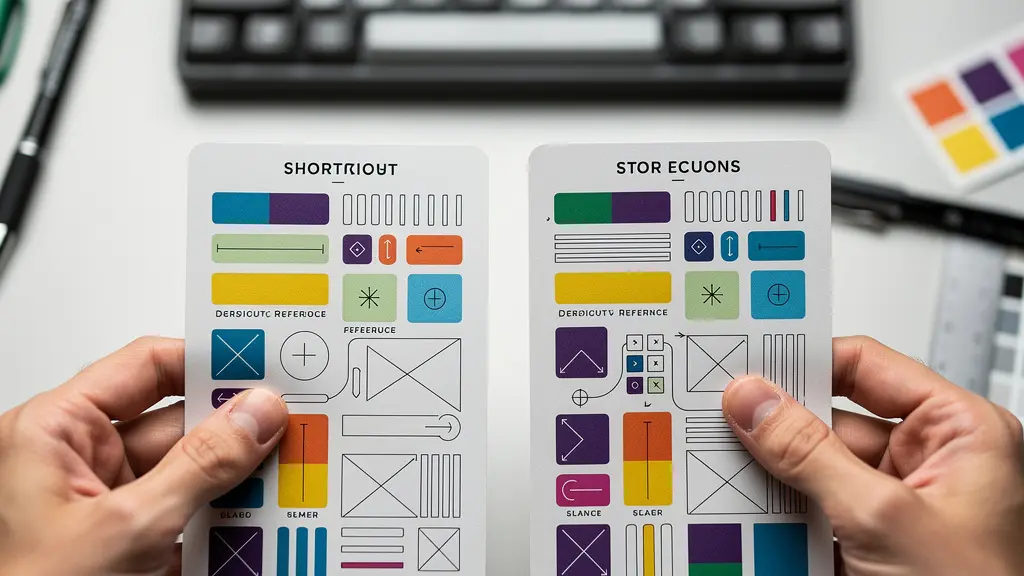
Before you even open Affinity, list your most-used shortcuts in Adobe. Focus on core functions: selection and direct selection tools, pen tool commands, zooming and panning, and basic transformations. Affinity’s applications are fully customizable, allowing you to reassign almost any shortcut to match your existing Adobe workflow. This single afternoon of setup is the most valuable investment you can make in the transition. By replicating your core muscle memory, you can be functionally proficient in a matter of hours, not weeks.
Your Action Plan: The Muscle Memory Triage Method
- List your top 20 most-used Adobe shortcuts before opening Affinity. Focus on the commands you use without thinking.
- Concentrate on the 20% of shortcuts you rely on for 80% of your work; ignore obscure commands for now.
- Keep Affinity’s help menu or a reference sheet open to quickly find the equivalent functions to remap.
- Prioritize mapping the Selection/Direct Selection tools, Pen tool commands, and navigation first. These are the foundation of your workflow.
- Create new, easy-to-remember shortcuts for Affinity-unique features you’ll use often, like the Persona switcher.
- Test your new shortcut configuration on a non-critical practice project before diving into paid client work.
Native Files or PDF Exports: Which Format Ensures Safety When Collaborating with Agencies?
The fear of file incompatibility is a major deterrent for freelancers considering the switch. When collaborating with agencies or clients who are standardized on Adobe, sending a native `.afdesign` file is often not an option. The solution lies in establishing a clear Compatibility Protocol based on the final output required. The golden rule is to deliver formats that are universally accepted and non-proprietary.
For almost all print and digital handoffs, a press-ready PDF/X-4 is the professional standard. Affinity Publisher and Designer have robust export controls that allow you to create high-quality, compliant PDFs with correct color profiles (CMYK), bleed, and crop marks. By delivering a locked, final artifact like a PDF, you retain control over your source file while providing the agency with exactly what they need for production. This workflow completely bypasses any issues of native file compatibility. While Affinity can open and export PSD and EPS files for certain workflows, relying on PDF for final delivery is the safest and most professional approach.
This table outlines the trade-offs for each collaboration format, as confirmed by a detailed analysis of professional print design workflows.
| Format Type | Professional Control | Agency Compatibility | Version Protection |
|---|---|---|---|
| Press-Ready PDF/X-4 | Full control retained | Universal acceptance | Locked final artifact |
| Native Affinity Files | Editable by freelancer only | Limited compatibility | Requires file conversion |
| Hybrid Approach (PDF + Assets) | Balanced control | Maximum flexibility | Protected composition |
The Specific 3D Tool Missing in Cheaper Alternatives That Package Designers Rely On
While Affinity’s suite covers the vast majority of graphic design tasks, it’s crucial to be aware of its specific limitations. For freelancers specializing in package design, the most significant feature delta is the lack of an integrated 3D mockup tool. In the Adobe ecosystem, designers rely heavily on Adobe Dimension or the 3D tools within Illustrator to quickly map flat artwork onto 3D models of boxes, bottles, and other packaging for client presentations. This is a critical step for visualizing the final product.
Research confirms that for this niche, the key missing feature for package designers is that Adobe Dimension and Illustrator’s 3D tools have no direct Affinity equivalent. This does not mean the task is impossible, but it does require a different workflow. The most common workaround involves using a combination of Affinity Designer and the free, open-source 3D software, Blender. A designer can export the flat dieline and artwork from Affinity and then apply it as a texture to a 3D model within Blender to render a professional mockup.
This workaround is powerful but adds steps and a new software tool to the process. Therefore, a freelancer must make a calculated decision. If package design mockups constitute over 75% of your income, the streamlined workflow within Adobe’s ecosystem may justify the subscription cost. For those who do packaging less frequently, the Affinity-to-Blender workflow is a perfectly viable and cost-free alternative.
When to Switch Software: Why Doing It Mid-Project Is a Recipe for Disaster
The single biggest mistake a freelancer can make is to switch creative software in the middle of a paid client project. The temptation to start saving money immediately is strong, but the risk of project failure is unacceptably high. Even with excellent preparation, unforeseen issues will arise. Discovering a counter-intuitive function or a missing feature while on a tight deadline will cause immense stress, lead to missed deadlines, and potentially damage your professional reputation. The disruption to workflow, even for seasoned designers, can take weeks to fully overcome.

The correct approach is to treat the switch as a dedicated internal project with its own timeline. The ideal time to make the transition is during a predictable lull in your business cycle, such as after the delivery of a major project or during a traditionally quiet month. This provides a low-pressure window to implement a phased transition plan. This plan allows you to build confidence and proficiency with the new tools on non-critical work before deploying them for high-stakes client projects.
A structured transition is the core of a successful switch. Here is a proven plan:
- Phase 1 – Sandbox: Recreate one of your own complex past projects in Affinity. This is for practice only, allowing you to encounter and solve problems without external pressure.
- Phase 2 – Pro-Bono: Complete a small, real-world project for a friend, family member, or a non-profit. This introduces the element of a “client” with low stakes.
- Phase 3 – Low-Stakes Client Work: Take on a simple client project with a generous deadline, informing the client you are using new tools to manage expectations.
- Safety Net: Keep your Adobe subscription active for the first three months of the transition. This provides an essential fallback if you hit an insurmountable roadblock on a client project.
How to Flatten Transparency to Prevent White Boxes Appearing on the Final Print?
For designers working in print, one of the most feared technical issues is the dreaded “white box” artifact. This occurs when complex transparencies, shadows, or blending modes used in a design file are misinterpreted by an older or less sophisticated printer’s Raster Image Processor (RIP). The result is a solid white box appearing around the transparent object on the final printed piece. While this was a more common issue in the past, ensuring your files are built cleanly is still a core part of professional print preparation, regardless of the software you use.
Affinity Publisher provides robust pre-flight and export tools to prevent these issues. The key is to manage transparency correctly from the start and, when in doubt, to flatten it during the export process. In the PDF export dialog, Affinity has a “Rasterise Everything” option. While this should be used as a last resort because it converts text to images, it is a foolproof way to ensure that all complex effects are baked into the file, eliminating any chance of RIP errors. A more nuanced approach involves selectively rasterizing just the specific layers causing issues.
Fortunately, Affinity Publisher’s latest update has resolved many of the early printing and export bugs, making it a highly reliable tool for professional print workflows. The following checklist should be part of any designer’s final pre-flight process:
- Use the Resource Manager to confirm all placed images and colors are in the correct CMYK color space, not RGB.
- Double-check Overprint settings, especially for black text placed on colored backgrounds.
- Review all transparency blending modes; stick to common ones like Multiply and Screen where possible.
- If the project is critical, create a small 5×5 cm test file containing the most complex transparent elements and send it to the printer for a test run.
- Always request a hard-copy proof from the printer before approving the full production run.
How to Code Lazy Loading so Images Appear Exactly When the User Scrolls?
While designers don’t typically write the code, their role in preparing assets for web performance features like lazy loading is crucial. A smooth designer-to-developer handoff is key, and Affinity’s toolset is well-equipped for modern web workflows. Lazy loading is a technique where images on a webpage are only loaded as they are about to enter the viewport, saving bandwidth and dramatically speeding up initial page load times. The designer’s job is to provide the developer with all the necessary image variations in an organized manner.
This is where Affinity’s Export Persona becomes a powerhouse. It’s a dedicated workspace for slicing and exporting assets. A designer can define a single slice for a hero image and, in one click, export multiple sizes and formats (e.g., large WebP for desktop, medium JPEG for tablets, small AVIF for mobile). This streamlined process is essential for creating the `srcset` attributes that power responsive images. Furthermore, designers can use the Export Persona to generate tiny, low-quality image placeholders (LQIP) or extract the dominant color of an image to be used as a background placeholder while the full-resolution image loads.
A successful handoff for a lazy-loaded page requires a clear workflow. The designer should provide the following:
- Multiple image sizes and formats for each image, created using the Export Persona.
- Systematic file naming (e.g., `hero-image-lg.webp`, `hero-image-sm.jpg`).
- Low-quality image placeholders (LQIP) or dominant color hex codes for loading states.
- A handoff note specifying which images are “above-the-fold” and should not be lazy-loaded to ensure a fast initial render.
This level of organization ensures that collaboration between Affinity-based designers and developers is seamless, with file exchange of SVG, PDF, and other web formats working perfectly for most modern design workflows.
Key Takeaways
- The financial benefit of switching to Affinity is clear and substantial, saving a typical freelancer over $3,000 in five years.
- The biggest hurdles—learning curve and file compatibility—are solvable with proactive planning, such as remapping shortcuts and using universal PDF formats.
- A phased, planned transition during a business lull is the only safe way to switch, mitigating risks to client work and professional reputation.
Will AI Art Tools Replace Traditional Illustrators in the Next 5 Years?
The rise of generative AI is the most significant technological shift in the creative industry today, and it draws a sharp philosophical line between Adobe and Affinity. Adobe is aggressively integrating its AI, Firefly, into the core of its products, positioning it as a co-pilot for creativity. In contrast, Affinity, even after its acquisition by Canva, has taken a firm and public stance on data privacy and the role of AI. This difference is becoming a critical factor for designers concerned about data ownership and the ethics of AI training.
For many creatives, the question of whether AI will “replace” them is less important than the question of who owns the data and the resulting work. Affinity’s position on this provides a powerful sense of security and workflow sovereignty. They have explicitly stated that a user’s content is not used to train any AI models. This commitment to creative ownership stands in stark contrast to the broader industry trend of leveraging user data.
As one industry analysis puts it, this is a core part of Affinity’s value proposition. The following quote from an Affinity vs Adobe Creative Cloud comparison highlights this key differentiator:
Affinity doesn’t use your content to train its products or any AI models. Your license is yours. The content you create under the license is yours.
– XDA Developers Analysis, Affinity vs Adobe Creative Cloud comparison
While AI tools will undoubtedly become powerful assistants, they will not replace the core skills of a traditional illustrator: conceptual thinking, storytelling, and a unique artistic voice. For freelancers who value data privacy and want to maintain a clear line between their original work and AI-generated content, Affinity’s “AI-free” stance offers a compelling and principled choice in an industry grappling with the implications of artificial intelligence.
Evaluating these factors with a clear, strategic mindset empowers you to make a business decision that is right for your specific financial situation, client base, and creative principles. Start by mapping out your own phased transition plan today to see how this change could fit into your freelance career.